Graph Insights¤
Enable Graph Insights¤
Follow the instructions related to your deployment type: a) docker-compose or b) helm / Kubernetes based.
(a) Enable in docker-compose deployment¤
In our Corporate Memory docker-orchestration all main configurations can be directed by setting environment
variables in environments/config.env.
You can find the environment variables set as usual in environments/default.env and environments/config.env.
Add your license to licenses/graphinsights.lic then start the extension on an already running Corporate Memory
deployment.
Please also have a look at extensions/README.graphinsights.md.
(b) Enable in helm deployment¤
In helm based deployment you can enable Graph Insights by enabling it in your value file. It creates a new StatefulSet. Preemptively, you have to create a secret containing your license file.
kubectl -n cmem create secret generic graphinsights-license \
  --from-file=graphinsights.lic=your-license-file.lic
The chart mounts this secret via subPath: graphinsights.lic, so the secret key must be
named exactly graphinsights.lic (that is what --from-file=graphinsights.lic=... does).
The secret name defaults to graphinsights-license (graphinsights.license in your values file).
All needed configuration can be done in the Corporate Memory helm chart values.yaml file.
This enables the plugin.
Besides enabling the extension you also have to create a route/path in your Ingress or Route.
In the Chart’s values.yaml file, a configuration is commented out.
You should enable this in your values.yaml file.
    # GraphInsights at /graphinsights path (if enabled).
    - path: /graphinsights
      pathType: Prefix
      serviceName: graphinsights
      servicePort: 8080
Also make sure you have set the clients and client credentials. See Configure OAuth clients (helm)
The configuration mentioned below is rendered with those files, but you usually don’t have to touch those:
configuration-files/explore-application.ymlfor Exploreconfiguration-files/cmem.integration.config.ymlfor Graph Insights
For more details please have a look in the helm value file. Every configuration is documented there. Please refer to Kubernetes deployments for more information.
Activate and verify the installation¤
First, you have to enable Graph Insights in your Explore application view configuration. By default, it is disabled.
Info
The enableGraphInsights configuration is part of every application view, no matter whether the Graph Insights
extension is deployed or not.
Switching it on does not result in a working Graph Insights tab as long as no Graph Insights service is running,
so make sure you have enabled the extension as described above.
Open the
Application view configuration module, select the
application view you want to change and expand the Application view section.
There you find the enableGraphInsights configuration.
Note
The switch next to the configuration key shows the value of the system default and is always disabled. In order to change the value for your application view, you have to press the Override button first.
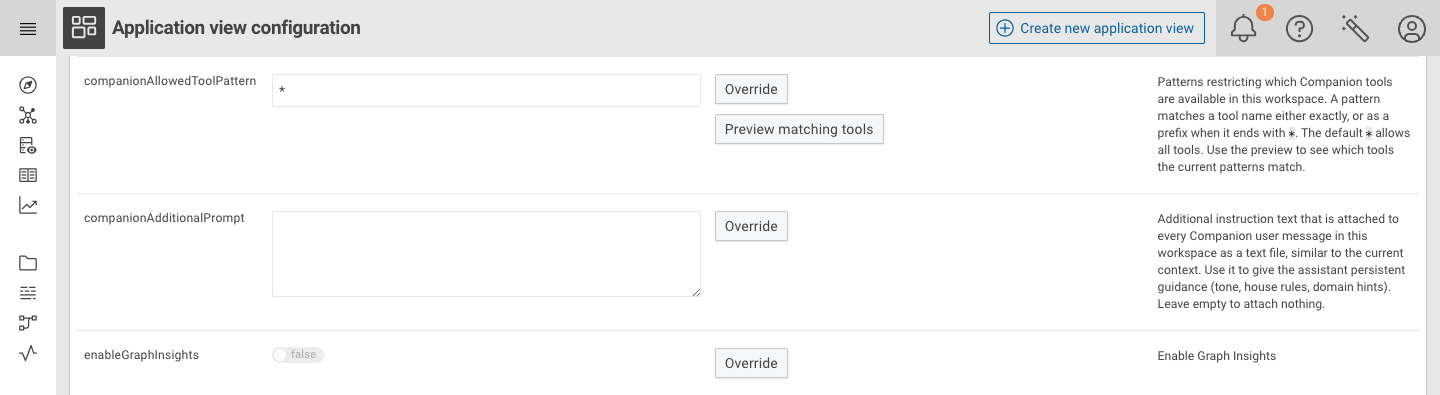
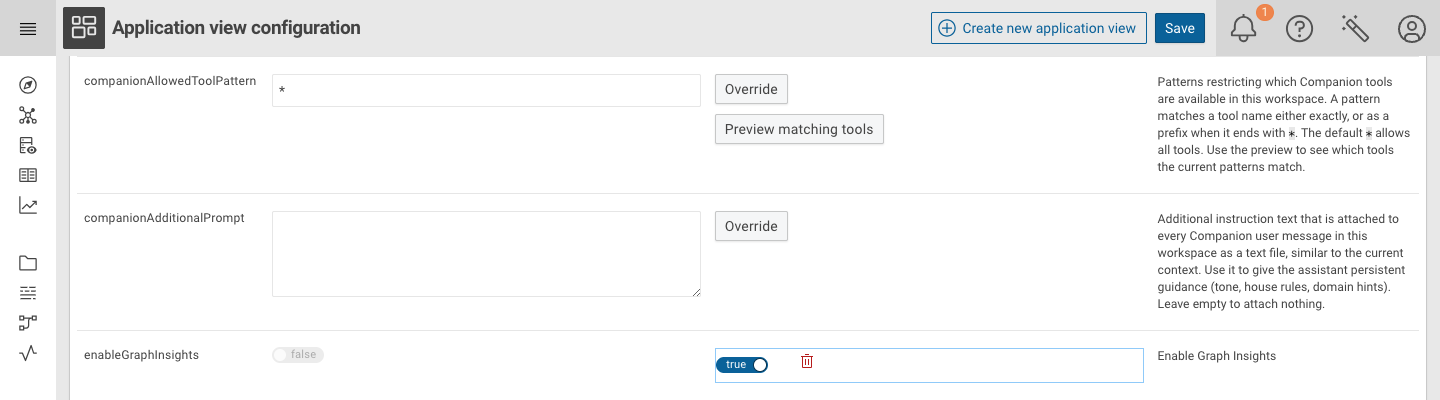
After pressing Override, an editable switch appears for your application view.
Set it to true and press Save.
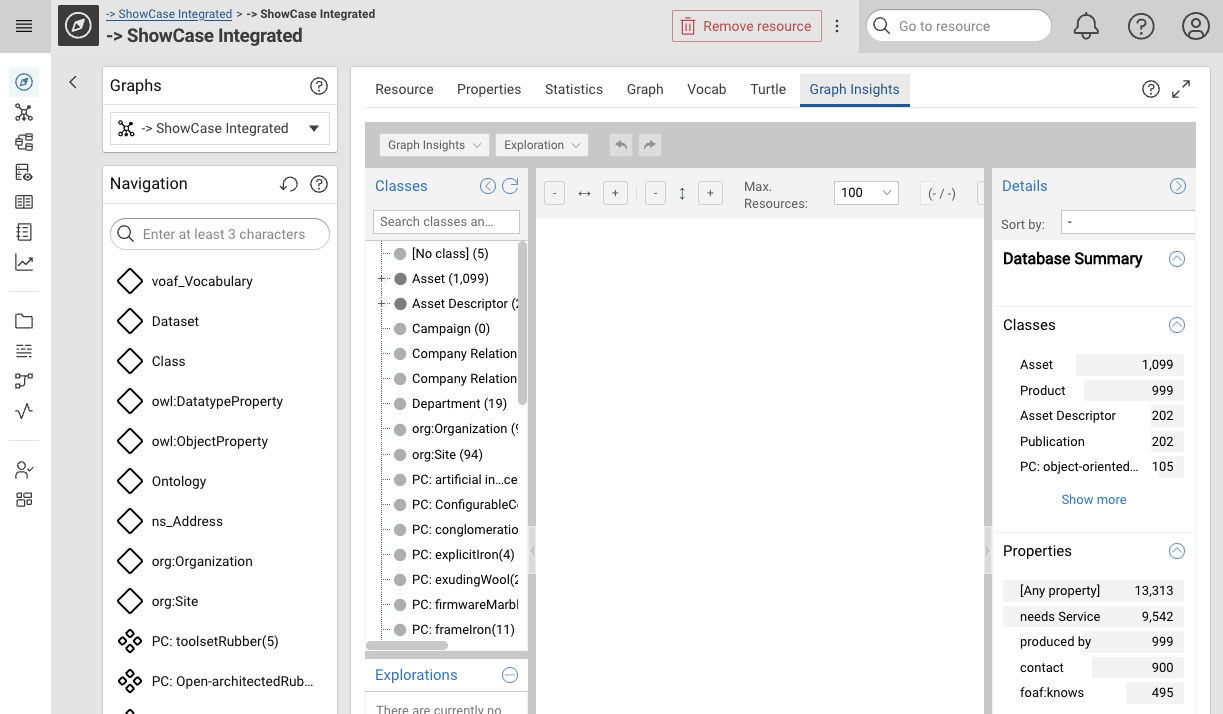
Then you are able to use Graph Insights. Therefore, select the graph to view in Graph Insights and click the Prepare Graph Insights snapshot button.
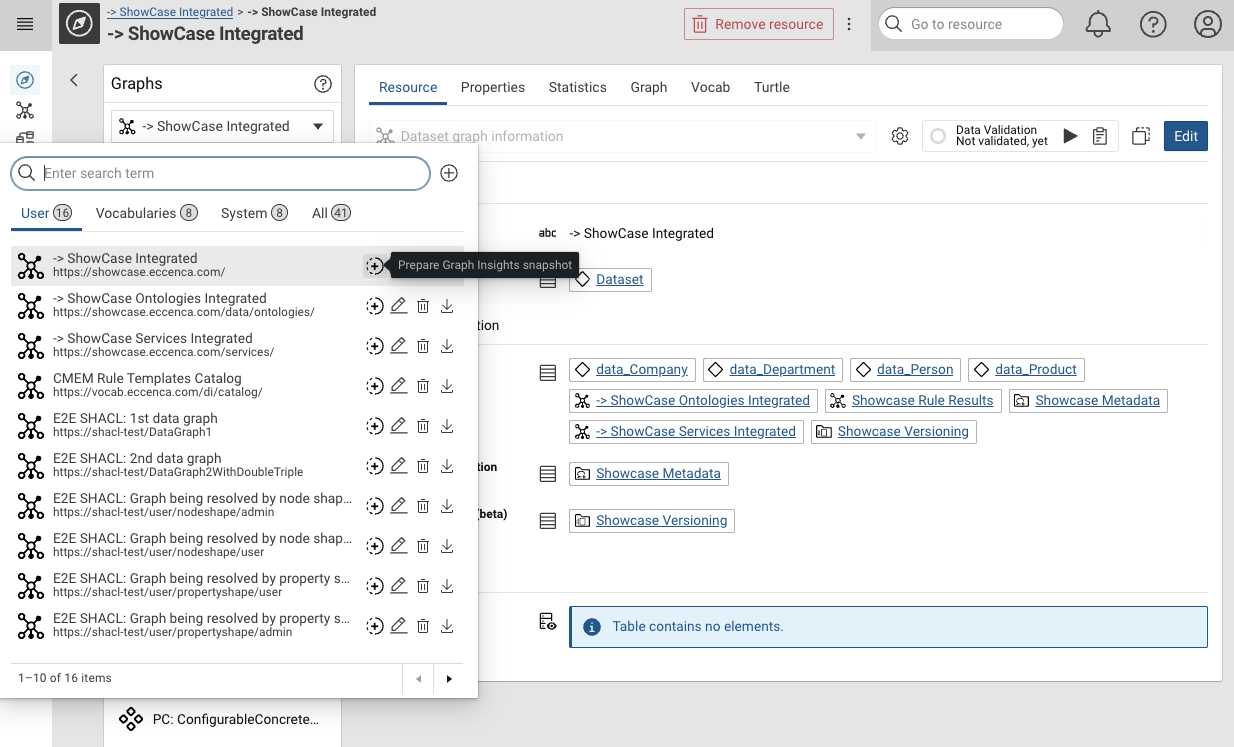
This will enable the Graph Insights tab.
Configuration¤
This section explains the basic configuration of Graph Insights. Since Graph Insights is an application integrated into explore, we need to configure Explore for the integration and Graph Insights as application itself.
The following chapters explain the configuration in case you want to change the default behavior.
While the extension in the docker-orchestration is enabled through Spring profiles, we just use the benefits of templating in helm and only use one profile.
This is why the configuration differs in both deployments, but we tried to use the same variable names and configuration snippets.
Explore configuration¤
In our docker-orchestration you find the file which is loaded as graphinsights profile
at conf/explore/application-graphinsights.yml.
Environment variables as usual can be found in environments/default.env and environments/config.env.
Sizing can be changed in the loaded memory profile, e.g. at environments/config.mem.16g.env.
The deployment definition for explore with the extension is defined in extensions/docker-compose.graphinsights.yml in the explore service.
In helm deployments you find the needed section inside the .Values.graphinsights.enabled block in the file at configuration-files/explore-application.yml, where most of the configuration is inserted with GO-templates.
Some environment variables are set in the values.yaml and rendered in a ConfigMap templates/explore-configmap.yaml.
spring.security.oauth2.client.registration.explore-service:
    client-id: cmem-service-account
    client-secret: change-me
    authorization-grant-type: client_credentials
    provider: keycloak
semspect:
  enabled: true
  integration:
    url: http://graphinsights:8080/graphinsights
    externalUrl: ${DEPLOY_BASE_URL}/graphinsights
    automaticResyncCronExpression: "0 0/30 8-10 * * *"
    localDatasetStatePath: /graphinsights/infinispan
    ### Configure either fileShareIntegrationSettings or graph-store-integration-settings
    # fileShareIntegrationSettings:
    localGraphStoragePathExplore: /graphinsights
    # localGraphStoragePathSemspect: /explore-share/
    graph-store-integration-settings:
      semspect-dataplatform-url: http://explore/dataplatform
Graph Insights configuration¤
Graph Insights, like Explore, is a Spring Boot application, so it gets configured with environment variables and a YAML file.
In our docker-orchestration you find the file at conf/graphinsights/cmem.integration.config.yml.
Environment variables as usual can be found in environments/default.env and environments/config.env.
Sizing can be changed in the loaded memory profile, e.g. at environments/config.mem.16g.env.
The deployment definition of the extension is defined in extensions/docker-compose.graphinsights.yml.
In helm deployments you find the file at configuration-files/cmem.integration.config.yml, which is rendered as a ConfigMap and then mounted into the Graph Insights StatefulSet.
Environment variables are set in the values.yaml and rendered in a ConfigMap templates/graphinsights-configmap.yaml.
Sizing regarding memory, CPU or disk usage are configured in the values.yaml.
---
# for descriptions of the properties s. the same file in https://gitlab.eccenca.com/devops/eccenca-graphinsights-docker
semspect:
  extensions: cmem
  extension.cmem:
    baseUri: "${DEPLOY_BASE_URL}"
    authorization:
      cacheDuration: 60
  core:
    enableCaptionPropertySelection: false
    enableDescriptionPropertySelection: false
    appNameOverride: "Graph Insights"
# Enable this to activate depiction resolving from given external domains and svg mime type
# semspect.core.payloadResolution:
#   allowedRedirectDomains:
#     - "*.eccenca.com"
#   allowedDataUrlMimeTypes: ["image/png", "image/jpeg", "image/gif", "image/webp", "image/svg+xml"]

frontend:
  appNameOverride: "Graph Insights"
  enableLogo: false
  enableAboutWindow: false
  singleDatabaseMode: true
  enableIframeOnlyMode: true
  enableCopyDeepLink: false
  fontFamily: "Roboto, helvetica, arial, sans-serif"
  fontFace: >
    @font-face {
          font-family: 'Roboto';
          font-style: normal;
          font-weight: 400;
          src: url('https://eccenca.com/layouts/default/fonts/roboto-v20-latin-regular.woff2') format('woff2');
    }

  trustedOrigins:
    - "${DEPLOY_BASE_URL}"
    - "${DEPLOY_BASE_URL}/*"

  backlink:
    objectURLTemplate: ${DEPLOY_BASE_URL}/{workspaceID}/explore?resource={objectID}&graph={contextGraphIRI}
    categoryURLTemplate: ${DEPLOY_BASE_URL}/{workspaceID}/explore?type={categoryID}&graph={contextGraphIRI}
    objectBacklinkDestination: "CMEM"
    categoryBacklinkDestination: "CMEM"
    multiObjectBacklinkDestination: "CMEM"
  debug: true
  logLevel: DEBUG

# secure /api/** via resourceserver
spring.security.oauth2:
  resourceserver:
    jwt:
      jwk-set-uri: "${OAUTH_JWK_SET_URL}"
  # semspect backend for frontend as oauth2client
  # To enable SLO add this as back-channel logout uri to the client semspect uses:
  # http://docker.localhost/graphinsights/logout/connect/back-channel/keycloak
  client:
    registration:
      keycloak:
        client-id: "${GRAPHINSIGHTS_OAUTH_CLIENT_ID}"
        authorization-grant-type: "authorization_code"
        client-authentication-method: "client_secret_basic"
        # not needed here because we never login to semspect directly
        redirectUri: "${DEPLOY_BASE_URL}/graphinsights/login/oauth2/code/{registrationId}"
        # openid is mandatory as spring somehow does not add it to the userinfo request
        scope:
          - openid
          - profile
          - email
      # service account used for datastore access
      semspect-service:
        client-id: "${GRAPHINSIGHTS_OAUTH_SERVICE_CLIENT_ID}"
        client-secret: "${GRAPHINSIGHTS_OAUTH_SERVICE_CLIENT_SECRET}"
        authorization-grant-type: client_credentials
        provider: keycloak
    provider:
      keycloak:
        issuer-uri: "${OAUTH_ISSUER_URL}"
        user-name-attribute: "preferred_username"

# same (fixed) session timeout as explore backend
server.servlet.session.timeout: "36000s"
server.frame.ancestors: "${DEPLOY_BASE_URL}"

logging:
  level:
    root: DEBUG
    org.springframework: WARN
    org.springframework.security: WARN

  pattern:
    console: "%d{yyyy-MM-dd'T'HH:mm:ss.SSSX,UTC} %-5level %logger{15} - %message%n%xException"
Resource consideration¤
Please refer to Graph Insights Sizing for more information.
OAuth configuration¤
Graph Insights requires authentication similar to Explore and Build (DataIntegration). There is the need for a client to authenticate in a browser and a second client to allow inter-component communication.
For convenience, by default we use the same clients as for the rest of the application:
- Client for browser: cmem
- Client for component communication: cmem-service-account
In case you want to have separate clients for production deployments, this chapter is for you.
Configure OAuth clients (docker-compose)¤
In our docker-orchestration to enrol those other clients, please follow these steps:
1.) take a look at environments/default.env and copy these variables to your environments/config.env file:
# This is the browser client:
GRAPHINSIGHTS_OAUTH_CLIENT_ID=graph-insights
# was this before:
# GRAPHINSIGHTS_OAUTH_CLIENT_ID=${OAUTH_CLIENT_ID}

# This is the inter component client:
GRAPHINSIGHTS_OAUTH_SERVICE_CLIENT_ID=graph-insights-service-account
# change the credential depending on your client secret, default would be: 7Ctw7eZvTeFYdwwvwopy8OjuMUVPb8A9
GRAPHINSIGHTS_OAUTH_SERVICE_CLIENT_SECRET=changeme
2.) Replace this in docker-compose.yml:
      - "EXPLORE_CMEM_SERVICE_CLIENT=${CMEM_SERVICE_ACCOUNT_CLIENT_ID}"
      - "EXPLORE_CMEM_SERVICE_CLIENT_SECRET=${CMEM_SERVICE_ACCOUNT_CLIENT_SECRET}"
      # with:
      - "EXPLORE_CMEM_SERVICE_CLIENT=${GRAPHINSIGHTS_OAUTH_SERVICE_CLIENT_ID}"
      - "EXPLORE_CMEM_SERVICE_CLIENT_SECRET=${GRAPHINSIGHTS_OAUTH_SERVICE_CLIENT_SECRET}"
3.) And also replace this in extensions/docker-compose.graphinsights.yml
      - "GRAPHINSIGHTS_OAUTH_SERVICE_CLIENT_ID=${CMEM_SERVICE_ACCOUNT_CLIENT_ID}"
      - "GRAPHINSIGHTS_OAUTH_SERVICE_CLIENT_SECRET=${CMEM_SERVICE_ACCOUNT_CLIENT_SECRET}"
      # with:
      - "GRAPHINSIGHTS_OAUTH_SERVICE_CLIENT_ID=${GRAPHINSIGHTS_OAUTH_SERVICE_CLIENT_ID}"
      - "GRAPHINSIGHTS_OAUTH_SERVICE_CLIENT_SECRET=${GRAPHINSIGHTS_OAUTH_SERVICE_CLIENT_SECRET}"
Configure OAuth clients (helm)¤
In helm deployments, once you have the clients available all you have to do is change these lines in your values.yaml accordingly:
global:
  # GraphInsights service account OAuth credentials (if using GraphInsights).
  # Can use the same credentials as CMEM or separate ones.
  graphinsightsClientId: graph-insights-service-account
  graphinsightsClientSecret: changeme  # IMPORTANT: Change this to a secure value!

  # OAuth client ID for GraphInsights frontend authentication.
  # Default: "graph-insights" (must exist in your Keycloak realm if GraphInsights is enabled).
  oauthClientIdGraphInsights: graph-insights
Creating separate OAuth clients for Graph Insights¤
If you start Corporate Memory with the docker-orchestration (or use our keycloak helm chart) for the first time, the separate clients are already created when starting the Postgresql container.
However, regenerating a new client secret is advisable:
- Select the
eccenca Corporate Memory-realm - Select
Clients - Select the client
graph-insights-service-account. - Select the tab
Credentials - Press
Regenerate - Then copy the new secret and fill in the values from above.
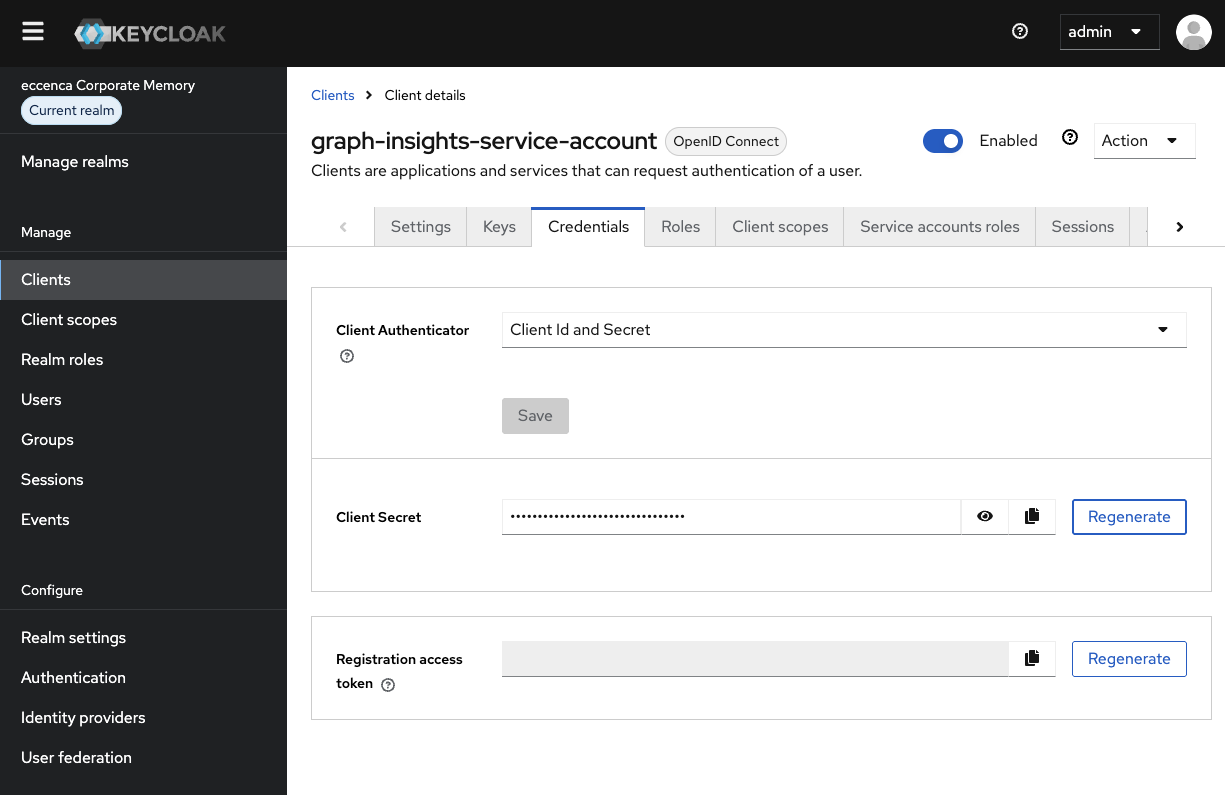
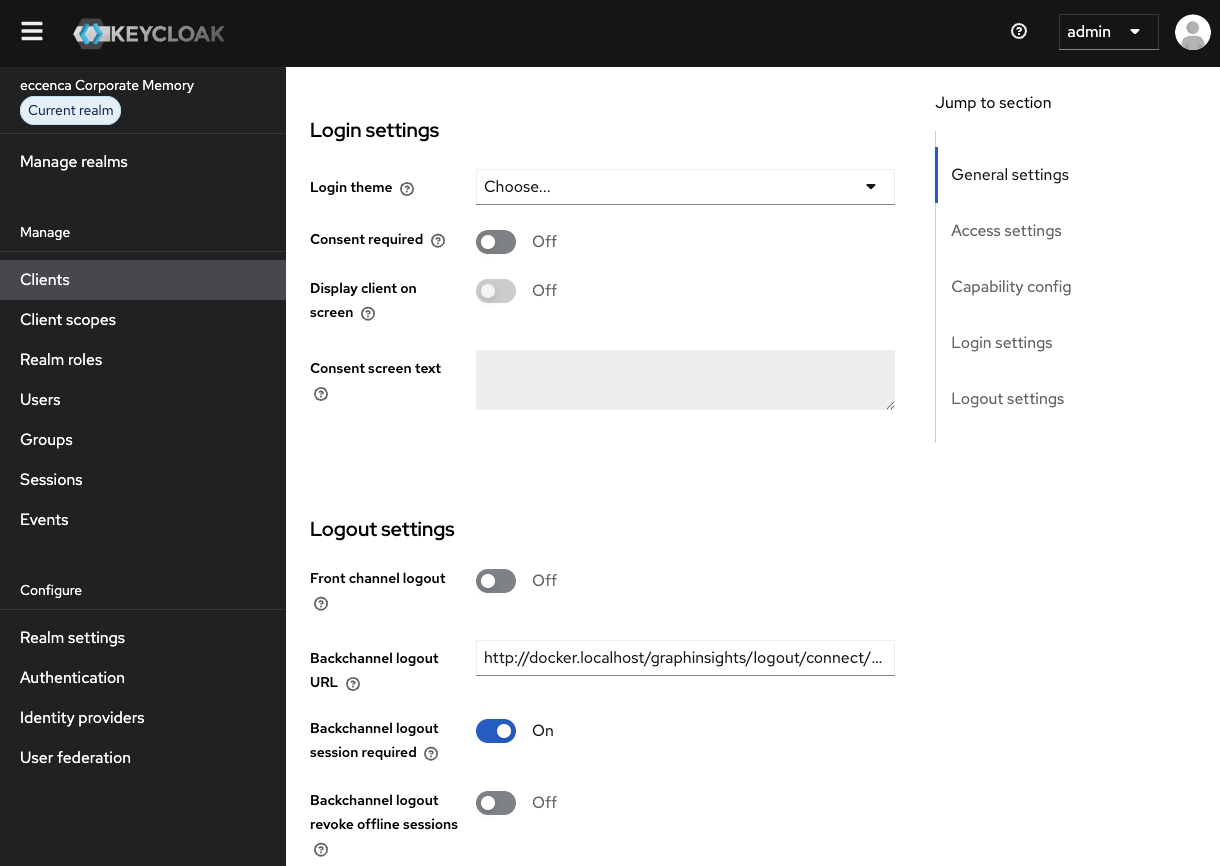
Also have a look below and check if your Backchannel logout URL is set.
In an already running deployment you would have to create those clients on your own.
We assume that we name the clients as following:
- Browser client:
graph-insights - Inter-component client:
graph-insights-service-account
Set Backchannel logout URL for Graph Insights¤
You would follow the same steps as in Keycloak Client configuration but name them differently, e.g. as above.
In addition, one last step is missing: To have the logout working properly you have to add a client Backchannel logout URL for the client meant for browser authentication (graph-insights):
- Select the
eccenca Corporate Memory-realm - Select
Clients - Select the client
graph-insights. - Scroll down to this section and add this:
https://<your-deploy-host>/graphinsights/logout/connect/back-channel/keycloak