Versioning of Graph Changes¤
Introduction¤
This feature keeps track of changes to your Knowledge Graphs by creating change set data based on the user’s editing activities.
Changes are not stored in the edited graph itself, but in a separate graph of type shui:VersioningGraph — the Versioning Graph.
Setting this up is a two step process: you create a Versioning Graph, and then configure the graph you want to track to use it.
Supported graph types
Versioning of graph changes is currently supported for (tracked) graphs of type void:Dataset only,
i.e. graphs created as New Knowledge Graph (void:Dataset).
On other graph types, the Versioning Graph property described in Step 2 is not offered.
Setup¤
To enable this feature on a specific graph, carry out the following steps in the Knowledge Graphs module.
1. Create a Versioning Graph¤
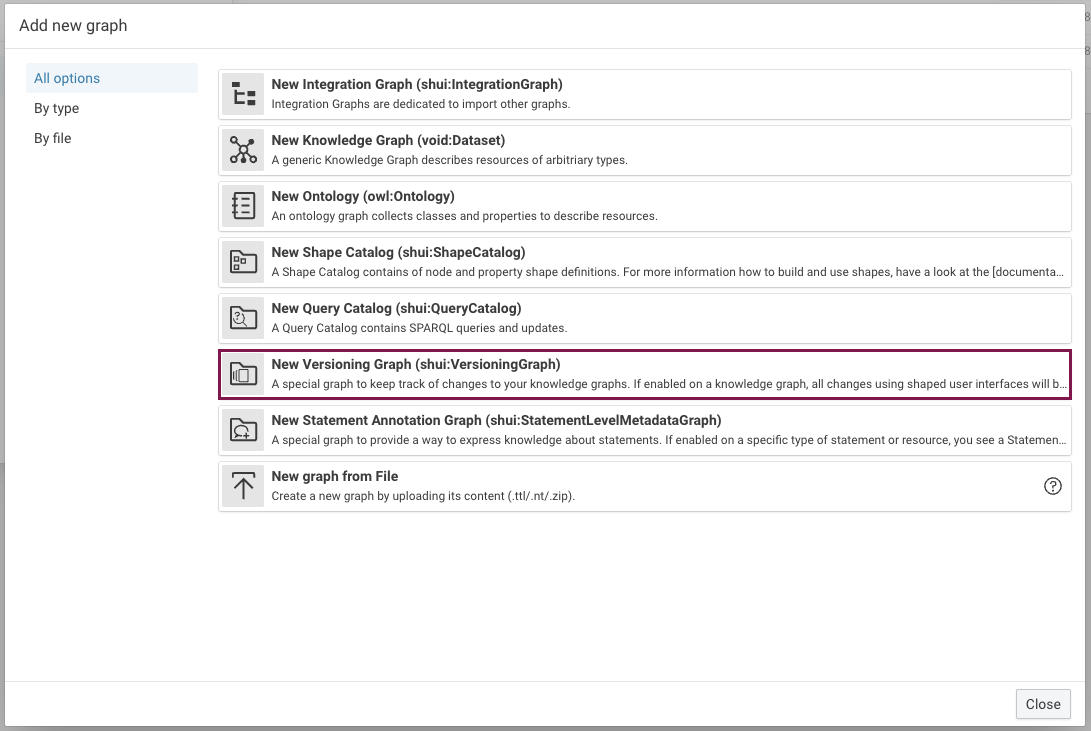
Open the graph selection and click Add new graph. In the Add new graph dialog, choose New Versioning Graph (shui:VersioningGraph).
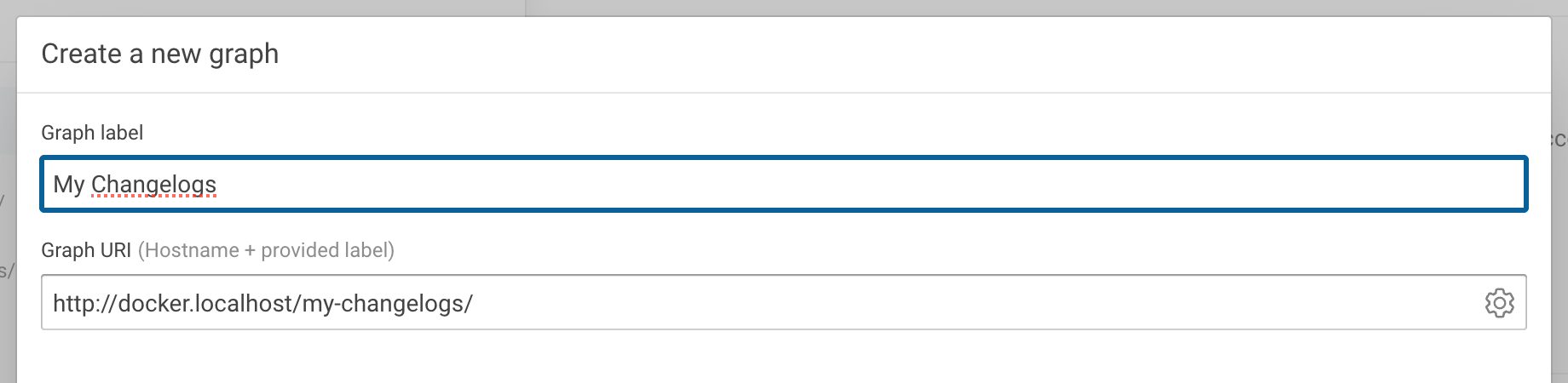
Provide a Graph label (e.g. My Changelogs).
The Graph URI is generated from it, by default from your hostname and the label.
You can simply type your own URI into the field, which switches the generation mode to Custom.
Alternatively, use the button to pick a different generation template
(Hostname + provided label, Selected graph + provided label, UUID or Custom).
Click Next to get to the metadata form, then click Save to create the graph.
2. Configure a graph to use the Versioning Graph¤
Switch to the Knowledge Graph whose changes you want to track and click Edit on the Resource tab.
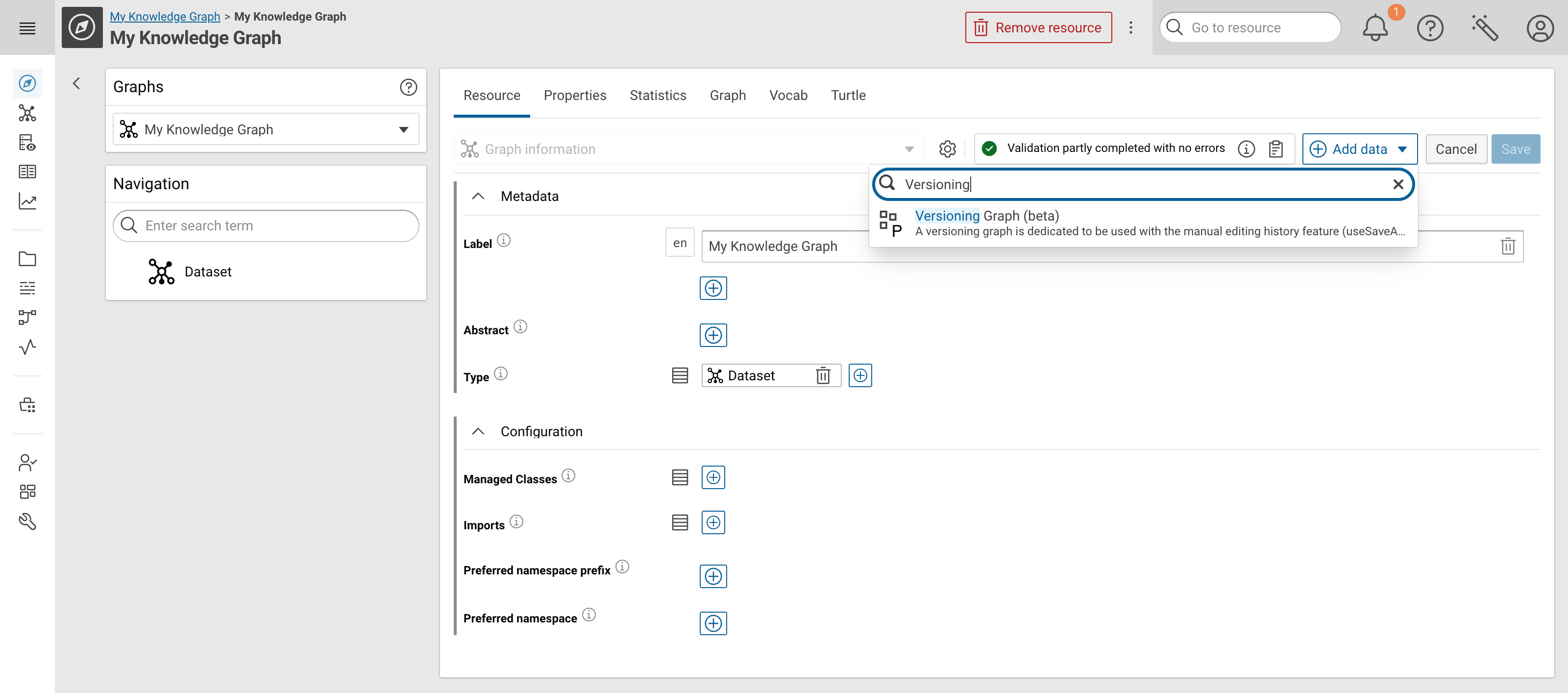
The Versioning Graph property is not part of the default graph form, so you have to add it first:
open the Add data menu, type Versioning in the filter field,
and select Versioning Graph (beta).
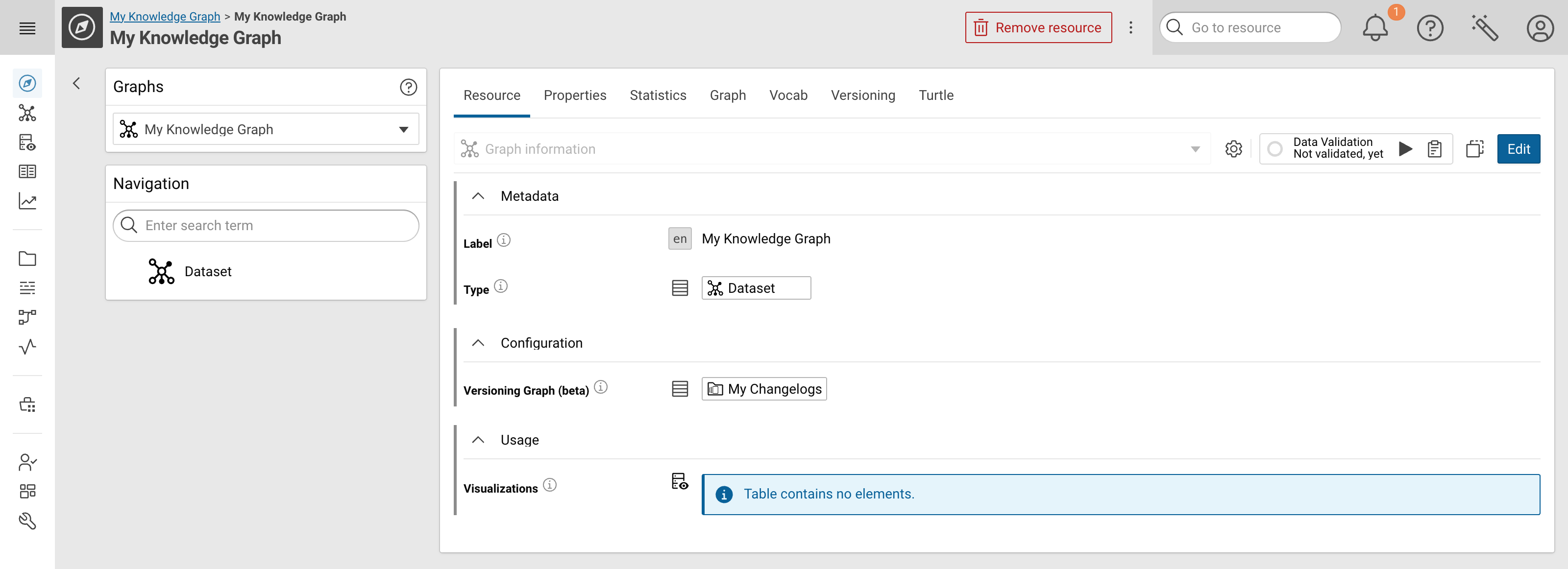
The Versioning Graph (beta) field is now shown in the Configuration section. Open its dropdown and select the Versioning Graph you created in step 1.
Note
Only graphs of type shui:VersioningGraph are offered here.
If the list is empty, the Versioning Graph from step 1 was not created or does not have the correct type.
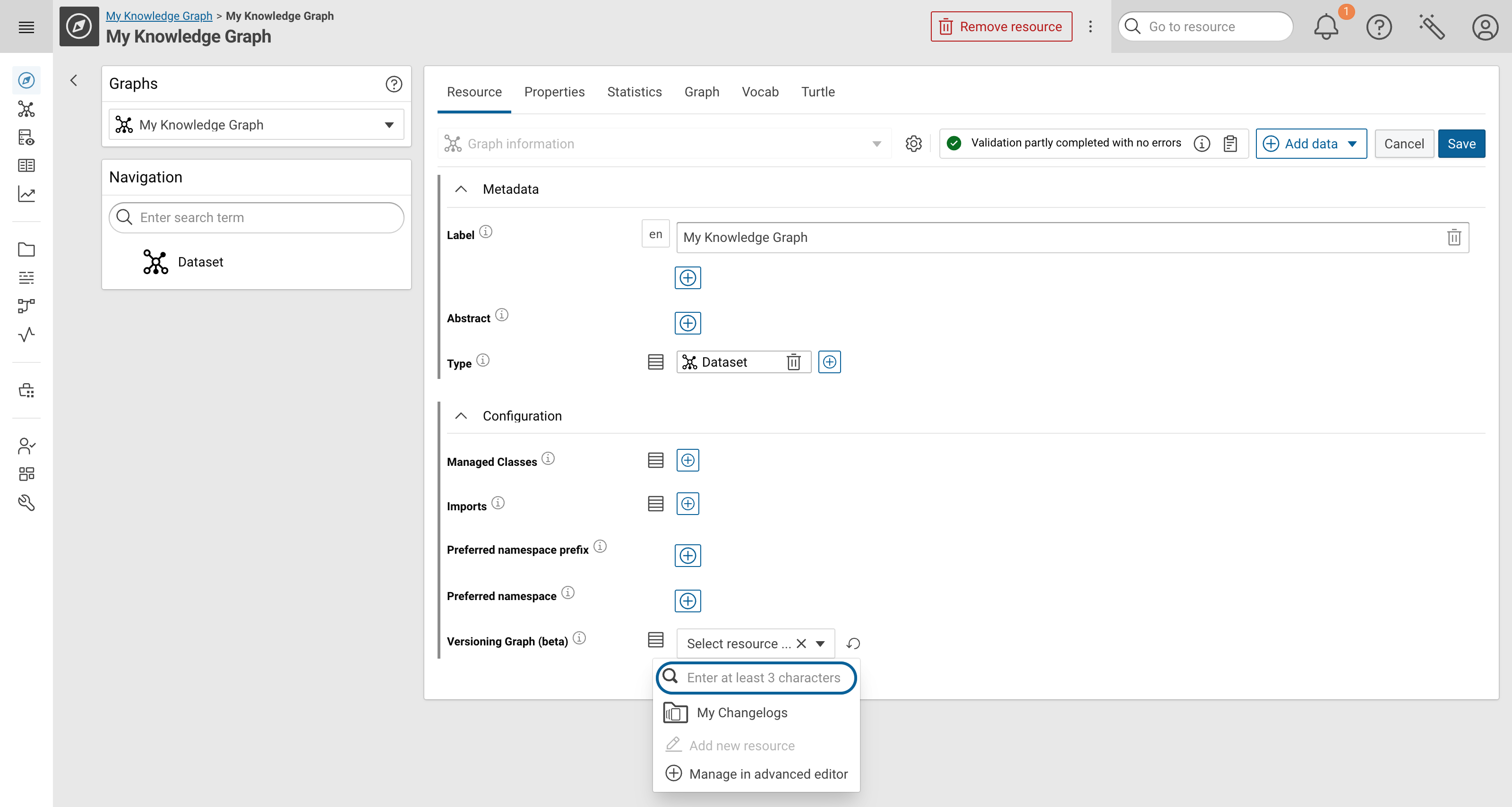
Click Save. The Versioning Graph is now listed in the Configuration section, and an additional Versioning tab appears for this graph.
Usage¤
Once enabled on a graph, all changes made through shaped user interfaces are tracked in the configured Versioning Graph. You can inspect the recorded change sets either on the tracked graph or on the Versioning Graph.
Versioning limitations
The graph change history only captures changes made through the supported versioning workflow - namely the SHACL defined Resource tab.
The following changes are not versioned:
- edits made in the Turtle tab
- edits made in the Properties tab in the UI
- changes executed through SPARQL UPDATE queries, including updates from the Queries catalogue or external clients
Change sets of a tracked graph¤
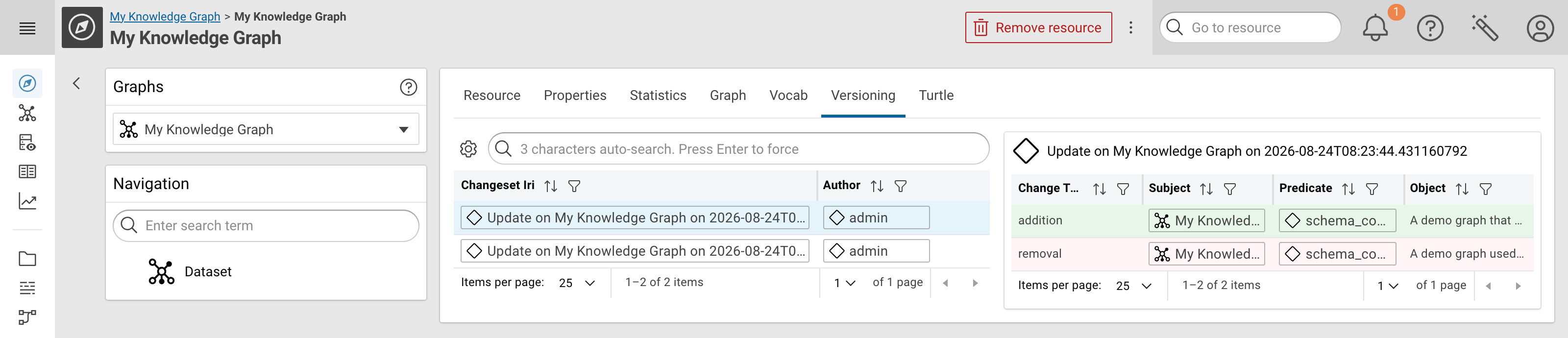
The Versioning tab of a tracked graph lists all change sets recorded for it, with author and timestamp.
Select a change set to see the individual statements it added (addition) and removed (removal).
Change sets in the Versioning Graph¤
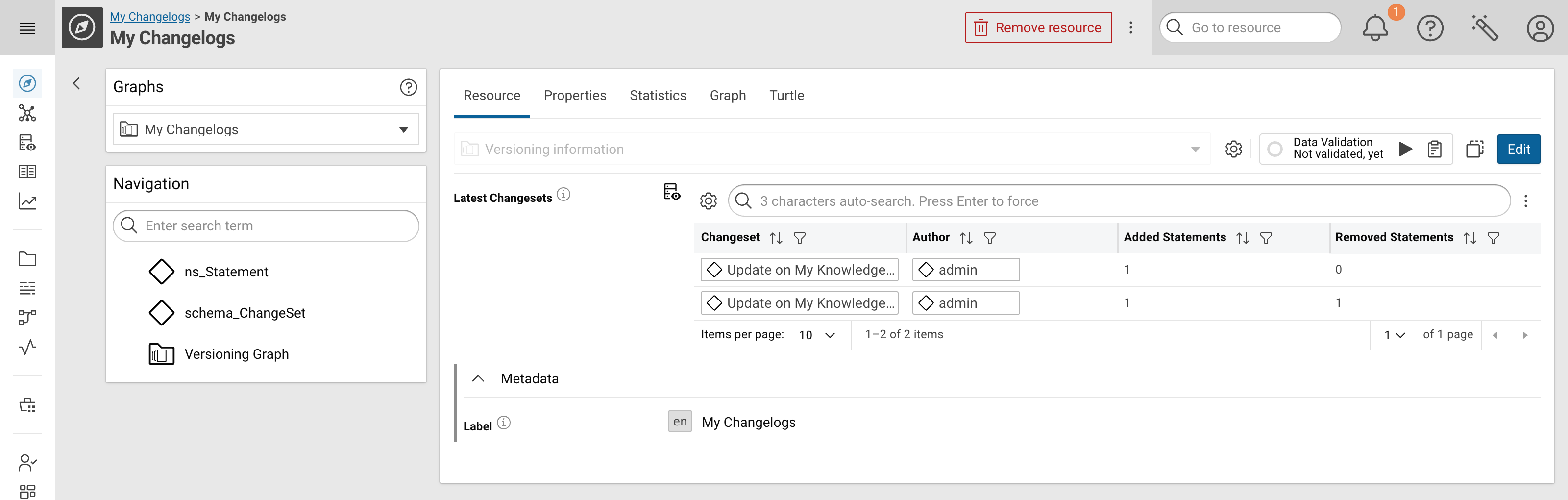
The Resource tab of the Versioning Graph itself shows the Latest Changesets table, listing the change sets of all graphs tracked by it, together with the number of added and removed statements.
Technical Background¤
For each editing activity (→ Save a Form), a ChangeSet resource will be created. This resource has some metadata (user, timestamp, label) as well as links to added and deleted Statements (using RDF Reification).
The details of the used vocabulary are available at the Changeset Vocabulary page.