Run catalog queries in workflows¤
Introduction¤
The query catalog of eccenca Corporate Memory stores SPARQL queries with a label, a description and optional placeholders. The cmem-plugin-querycatalog Python plugin makes these stored queries available as workflow tasks. A workflow then references the query in the catalog instead of carrying its own copy of the query text. A change to the query in the catalog takes effect on the next workflow execution.
The package contains three tasks:
- List Catalog Queries emits one entity per query of a catalog graph.
- Get Catalog Query emits one entity that describes a single query.
- Execute Catalog Query runs a stored query and passes its result to the next task in the workflow.
This tutorial lists the queries of the default query catalog, runs a query without placeholders, and runs a query with a placeholder that is filled from a dataset.
Prerequisites¤
- A Build project for the tutorial, for example
tutorial-querycatalog. - The queries of the default query catalog
CMEM Query Catalog(https://ns.eccenca.com/data/queries/), which is part of every Corporate Memory deployment. - The IRI of a graph with instance data in the deployment, used in step 3.
Installation¤
Install the cmem-plugin-querycatalog package with cmemc:
$ cmemc -c my-cmem admin workspace python install cmem-plugin-querycatalog
Install package cmem-plugin-querycatalog ... done
Validate the installation by listing the installed plugins. The output contains the three tasks of the package:
$ cmemc -c my-cmem admin workspace python list-plugins
┏━━━━━━━━━━━━━━━━━━━━━━━━━━━━━━━━━━━━━━━━━━━━━┳━━━━━━━━━━━━━━━━━━━━━━━━━━┳━━━━━━━━━━━━━━━━┳━━━━━━━━━━━━━━━━━━━━━━━┓
┃ ID                                          ┃ Package ID               ┃ Type           ┃ Label                 ┃
┣━━━━━━━━━━━━━━━━━━━━━━━━━━━━━━━━━━━━━━━━━━━━━╋━━━━━━━━━━━━━━━━━━━━━━━━━━╋━━━━━━━━━━━━━━━━╋━━━━━━━━━━━━━━━━━━━━━━━┫
┃ cmem_plugin_querycatalog-ExecuteCatalogQuery ┃ cmem-plugin-querycatalog ┃ WorkflowPlugin ┃ Execute Catalog Query ┃
┃ cmem_plugin_querycatalog-GetCatalogQuery     ┃ cmem-plugin-querycatalog ┃ WorkflowPlugin ┃ Get Catalog Query     ┃
┃ cmem_plugin_querycatalog-ListCatalogQueries  ┃ cmem-plugin-querycatalog ┃ WorkflowPlugin ┃ List Catalog Queries  ┃
┗━━━━━━━━━━━━━━━━━━━━━━━━━━━━━━━━━━━━━━━━━━━━━┻━━━━━━━━━━━━━━━━━━━━━━━━━━┻━━━━━━━━━━━━━━━━┻━━━━━━━━━━━━━━━━━━━━━━━┛
1 List the queries of a catalog¤
- Open the tutorial project and click Create new.
-
Enter
catalog queryin the search field, select List Catalog Queries and click Add.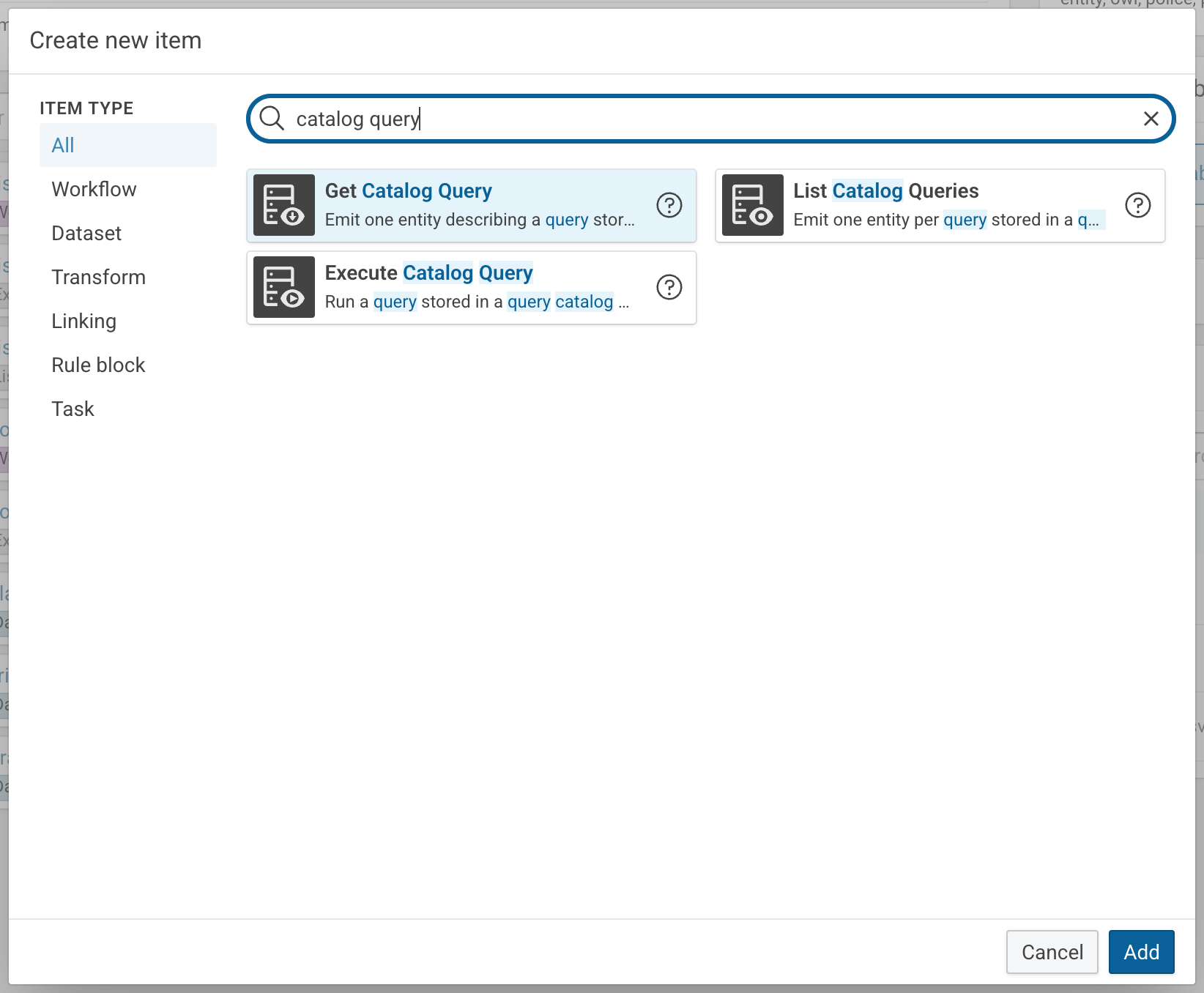
-
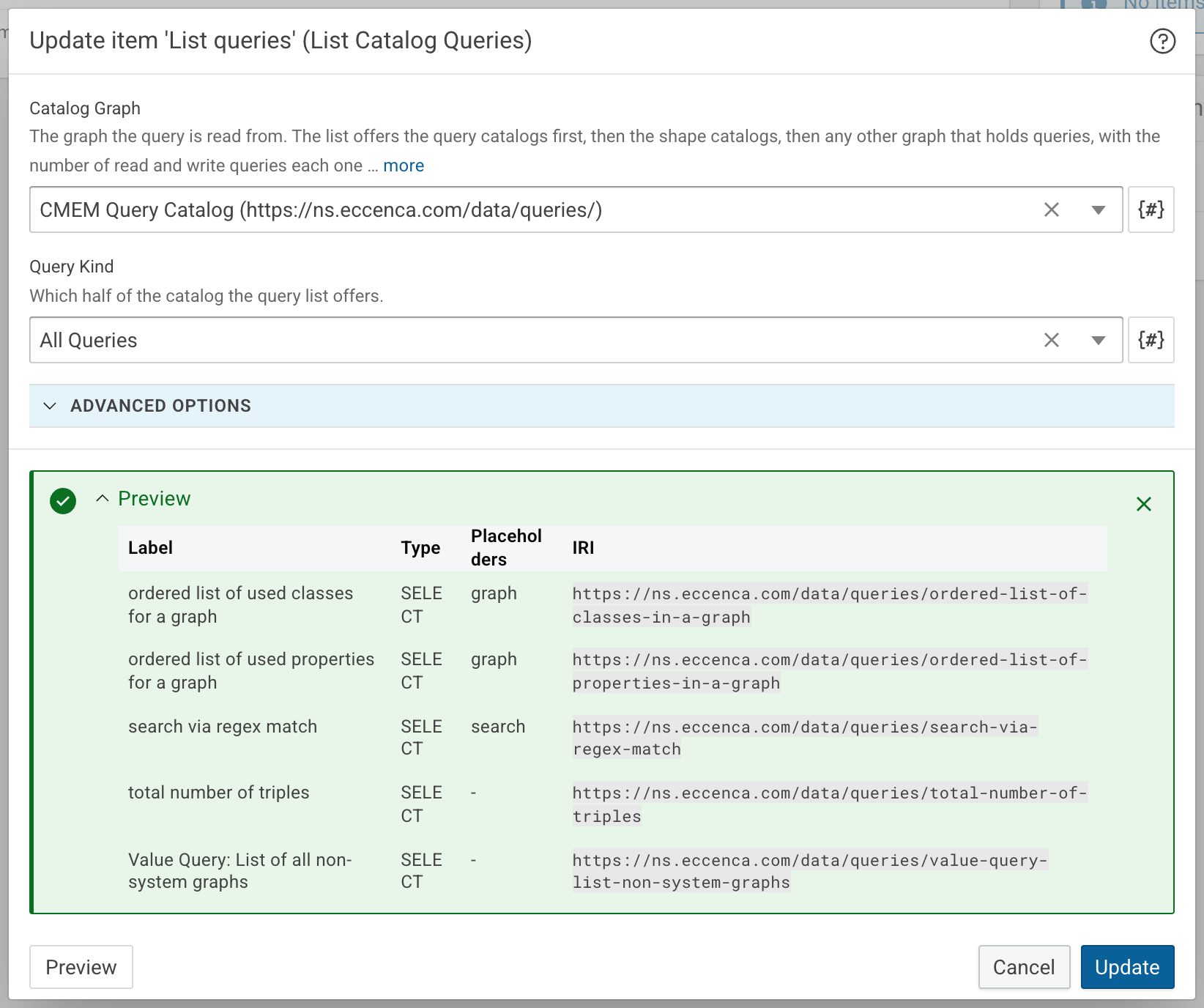
Enter the following values:
- Label:
List queries - Catalog Graph:
CMEM Query Catalog - Query Kind:
All Queries
An entry of the Catalog Graph list contains more than the label of the graph. Select the entry that starts with
CMEM Query Catalog. - Label:
-
Click Preview, then expand the Preview result. The table shows the label, the type, the placeholders and the IRI of every query in the catalog.
-
Click Create.
The Catalog Graph list shows the query catalogs first, then the shape catalogs, then any other graph that holds queries.
Each entry starts with the label of the graph, followed by the kind of catalog, the number of read and write queries the graph contains and the graph IRI.
In the same way, an entry of the Query list starts with the label of the query and ends with its IRI.
Query Kind restricts the entities to Read Queries or Write Queries, or keeps All Queries.
In a workflow, the task emits one entity per query with the values catalogGraph, query, label, description, queryType, queryText and placeholder.
The query text is emitted with its placeholders unfilled.
2 Run a query without placeholders¤
The query total number of triples counts the triples of every graph and has no placeholders.
A task that runs it does not read any input, so it can start a workflow.
In the workflow editor, the node of the task can still show an input connector.
Leave it unconnected.
- Create a CSV dataset with the label
Triple countsand the file nametriple-counts.csv. - Click Create new, select Execute Catalog Query and click Add.
-
Enter the following values:
- Label:
Count triples - Catalog Graph:
CMEM Query Catalog - Query Kind:
Read Queries - Query:
total number of triples
- Label:
-
Click Create.
- Create a workflow with the label
Count triples workflow. - Drag Count triples and Triple counts onto the canvas and connect the output of Count triples to the input of Triple counts.
- Click Save, then run the workflow.
The triple-counts.csv file contains one row per graph, with the columns graph and count.
The output of the task follows the type of the query:
- A
SELECTquery produces one entity per result row, with one value per projected variable. - An
ASKquery produces one entity with the valuetrueorfalse. - A
CONSTRUCTorDESCRIBEquery produces its statements as quad entities, ready for a task that consumes quads. - An update query produces no output.
Warning
Query Kind restricts what the task runs.
With Read Queries, the task refuses a query that has been changed into an update query in the catalog.
Select Write Queries only for a task that is meant to change data.
3 Run a query with a placeholder¤
The query ordered list of used classes for a graph contains the placeholder {{graph}}:
SELECT ?class (COUNT(?s) AS ?instances )
WHERE {
  GRAPH <{{graph}}> {
    ?s a ?class.
  }
}
GROUP BY ?class
ORDER BY DESC(?instances)
Execute Catalog Query turns every placeholder into an input field of the task. The task runs the query once per input entity and passes on the results of all executions together.
-
Create a file
graphs.csvwith a columngraphand one graph IRI per row. Replace the IRIs with graphs that exist in the deployment: -
Create a CSV dataset with the label
Graphsand upload thegraphs.csvfile. - Create a CSV dataset with the label
Classesand the file nameclasses.csv. -
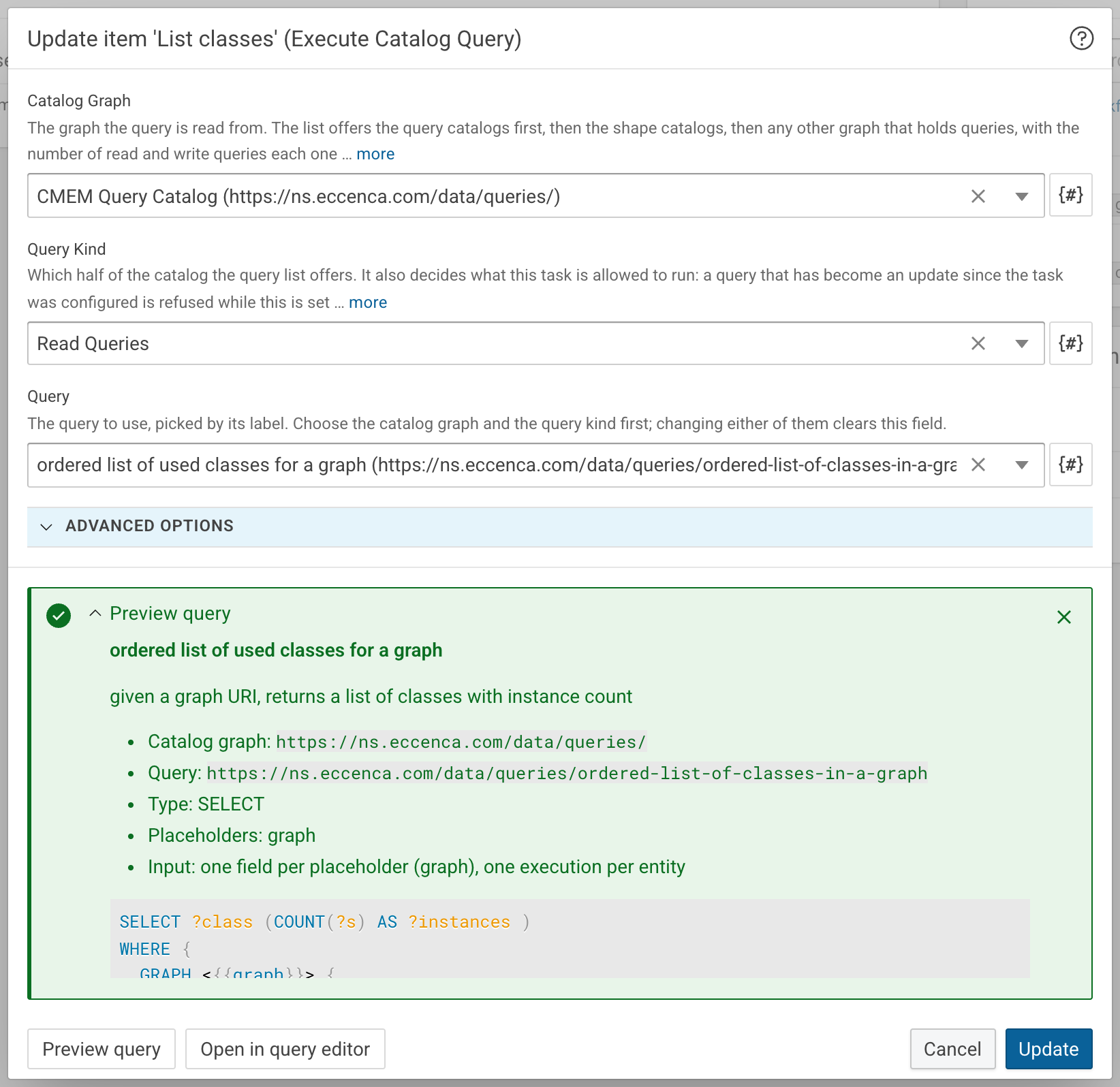
Create an Execute Catalog Query task with the following values:
- Label:
List classes - Catalog Graph:
CMEM Query Catalog - Query Kind:
Read Queries - Query:
ordered list of used classes for a graph
- Label:
-
Click Preview query to check the query before creating the task, then expand the Preview query result. The result shows the query type, its placeholders, the input the task expects and the query text.
-
Click Create.
-
Create a workflow with the label
List classes workflowand connect Graphs to List classes, and List classes to Classes.
-
Click Save, then run the workflow.
The classes.csv file contains the columns class and instances, with the rows of both graphs one after another.
Note
The stored query is read again on every execution. If a placeholder is added to the query in the catalog after the workflow has been built, the task fails and names the missing input instead of running an incomplete query.
Look up a single query¤
Get Catalog Query emits the same values as List Catalog Queries, for one query only.
With a query selected in the task, it emits one entity and has no input.
With Query left empty, it reads catalogGraph and query from its input and emits one entity per input entity.
List Catalog Queries emits these two values first, so the two tasks can be connected directly.